Organize Downloads on Mac

Turn a messy Downloads folder into a plan you can approve

Sorty can organize a crowded Downloads folder by context instead of relying only on file extensions. You see the proposed folder structure and every move before approving it.

Free · GPL v3 · macOS 15+ · Apple Silicon and Intel

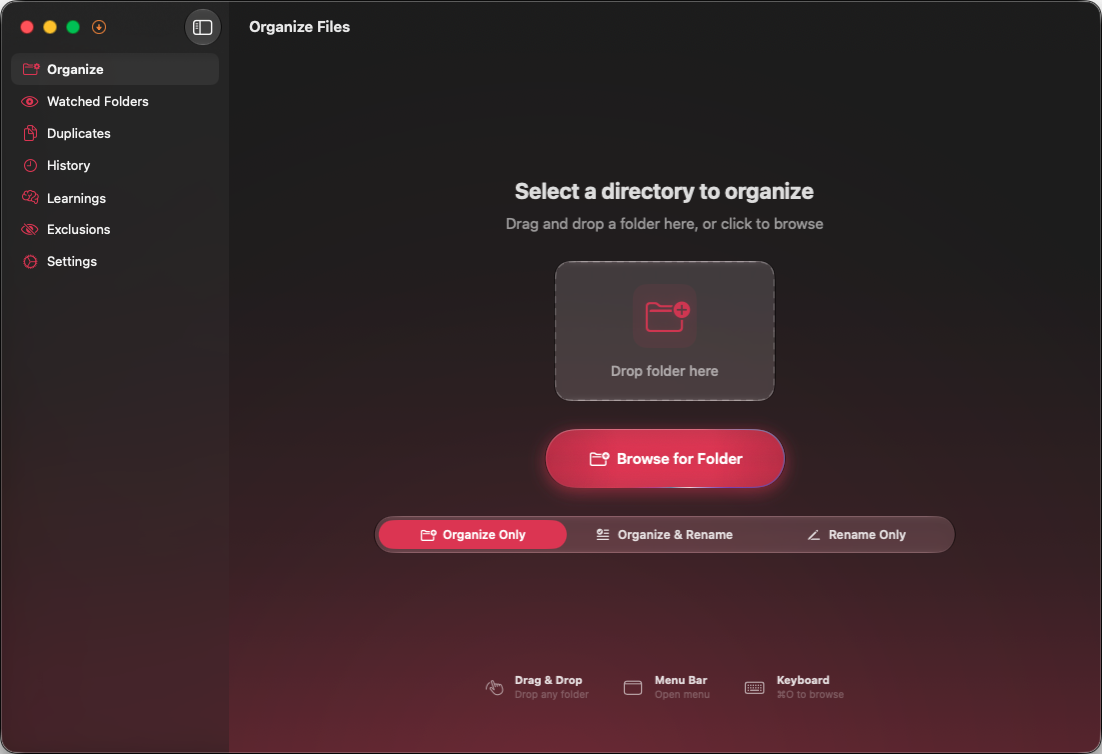
Sorty ready to organize a selected folder on a Mac.

How it works

From folder to reviewed plan in three steps

Follow the connected path. Each step appears as you reach it.

  1. 1

    Select Downloads

    Choose your Downloads folder in Sorty. macOS asks you to grant folder access, and Sorty stores that permission as a security-scoped bookmark.

  2. 2

    Review the suggested groups

    Sorty proposes semantic folders such as projects, receipts, installers, documents, or media based on the files that are actually present—not a fixed template.

  3. 3

    Apply once or keep it organized

    Apply the reviewed plan for a one-time cleanup, or configure Downloads as a watched folder for recurring organization.

Why AI helps with Downloads

Downloads usually mixes PDFs, screenshots, archives, installers, exports, and project files. Sorting only by extension separates files that belong together. Sorty can use names and surrounding context to propose folders around purpose instead.

No generic category list is forced onto the folder. The generated plan reflects the current files and any custom instructions or persona you provide.

A safer cleanup workflow

Sorty separates planning from file operations. You can inspect destinations, resolve conflicts, and reject unwanted suggestions before applying the plan. Organization moves or renames files; it does not delete them.

  • Preview each source and destination
  • Customize instructions for the current folder
  • Exclude files and patterns that should stay in place
  • Reverse an applied run from History
  • Use a local model when folder metadata should remain on-device
  • Turn a successful setup into an optional watched workflow

Use watched folders carefully

After a successful manual run, you can add Downloads to Watched Folders and choose per-folder settings. Start with review-oriented settings until the generated structure consistently matches your preferences, then enable more automation if it fits your workflow.